
Nothing stings quite like the text from your network: “You’ve used 80% of your data allowance” — on the 12th of the month. Whether you’re on a tight 5GB SIM-only deal or just tired of top-up anxiety, here’s how to reduce mobile data usage on Android without giving up the things you actually use your phone for.
I’ve cut people’s data usage by 50–70% with the settings below, usually without them noticing any difference in daily use. The secret: most mobile data isn’t spent on things you choose — it’s background activity, auto-playing videos, and cloud syncs you never asked for. Let’s reclaim it.
How to Reduce Mobile Data Usage on Android
Don’t guess — measure. Go to Settings → Network & internet → SIMs → App data usage (wording varies slightly by manufacturer). You’ll see exactly which apps used how much data, split by mobile versus WiFi.
The usual culprits: video apps (YouTube, TikTok, Netflix, Instagram Reels), cloud backup (Google Photos uploading over mobile data), app updates downloading in the background, and social media auto-play. Note the top 3 offenders — that’s where your effort goes.
How to Reduce Mobile Data Usage: The Big Wins
1. Turn on Data Saver
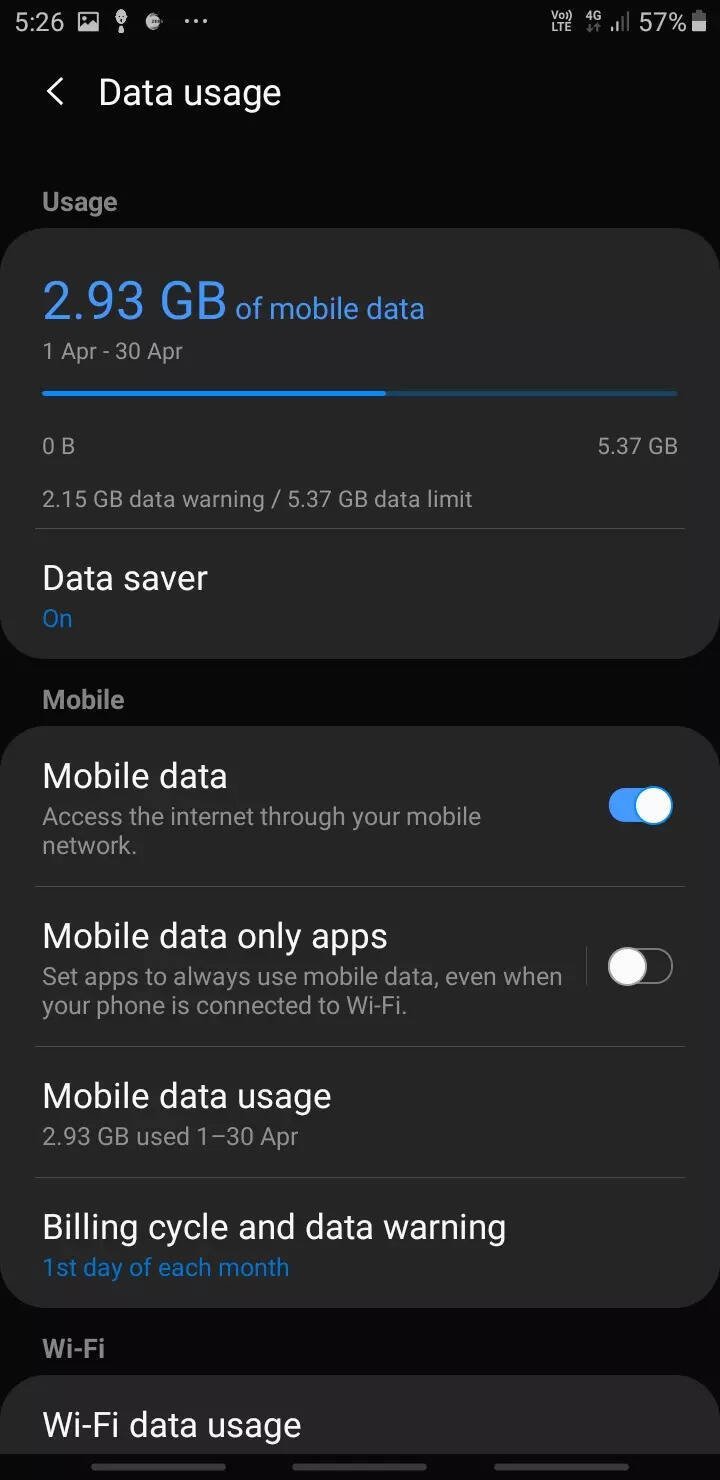
Android’s built-in Data Saver (Settings → Network & internet → Data Saver → ON) restricts background data for all apps — they can only use mobile data when you’re actively using them. This single toggle is the highest-impact setting available. You can exempt specific apps (messaging apps, for example) if you need real-time notifications from them.
2. Stop cloud backups using mobile data
This is the silent killer. Google Photos, WhatsApp backups and app data syncs can upload gigabytes over mobile data without you noticing:
- Google Photos: app → profile → Photos settings → Backup → Mobile data usage → “Don’t use mobile data for backup” (or set a small daily limit). Photos will back up on WiFi only. See our Android photo backup guide for the full setup.
- WhatsApp: Settings → Storage and data → Media auto-download → uncheck everything under “When using mobile data”. Those forwarded videos in group chats add up fast.
- Google Drive / OneDrive: check their settings for mobile-data upload options and restrict to WiFi.
3. Tame video streaming quality
Video is the biggest discretionary data use by far. The numbers: one hour of HD video ≈ 1–3GB; the same hour at 480p ≈ 0.5–0.7GB. On a phone screen, the difference between 720p and 480p is barely noticeable — but the data saving is enormous.
- YouTube: app → profile → Settings → Video quality preferences → set “On mobile networks” to Data saver / 480p.
- Netflix: app → profile → App Settings → Video Playback → Mobile Data Usage → Save Data.
- Instagram / TikTok: enable Data Saver in each app’s settings — this also disables auto-playing videos at full quality.
- BBC iPlayer: Settings → download over WiFi only, and stream at standard quality on mobile data.
4. Download on WiFi, consume offline
The pro move: shift your data usage to WiFi preemptively. Before leaving home:
- Download Netflix episodes, Spotify playlists, podcasts and YouTube videos over WiFi for offline use.
- Update apps only on WiFi: Play Store → profile → Settings → Network preferences → Auto-update apps → “Over WiFi only”.
- Download offline maps in Google Maps for areas you visit (profile → Offline maps) — navigation then uses almost no data.
- Preload news apps — many (BBC News, Guardian) let you download editions over WiFi.
5. Restrict background data per app
For apps that are data-hungry in the background but you don’t want to delete: Settings → Apps → [app] → Mobile data & WiFi → toggle OFF “Background data”. The app works normally when open but can’t sip data while closed. Target social media, shopping apps and games first — the same background activity that drains your battery is usually draining your data too.
6. Use lite versions and data-friendly browsers
- Chrome’s Lite mode / data compression is gone, but Opera Mini and Brave still offer meaningful data compression for browsing.
- Facebook Lite, Messenger Lite — dramatically less data-hungry than the full apps (where still available).
- Disable auto-play videos in every social app’s settings — this alone can save gigabytes monthly for heavy scrollers.
Set Guardrails: Alerts and Limits
Android lets you set a data warning and hard limit: Settings → Network & internet → SIMs → Data warning & limit. Set the warning at 75% of your allowance and the limit at 100% — the phone cuts mobile data automatically rather than letting you drift into out-of-bundle charges (which on some networks cost £5+/GB — daylight robbery).
Also set your billing cycle dates correctly in the same menu, or the measurements won’t align with your actual allowance.
Should You Just Get More Data?
Sometimes the rational answer is yes. UK SIM-only deals are absurdly cheap now — £8–£12/month buys 30–100GB on many networks, and unlimited data starts around £15–£20. If you’re constantly fighting a 5GB allowance, the £4/month upgrade to 30GB buys more peace of mind than any amount of settings-tweaking. Check MoneySavingExpert’s mobile deals — the market moves fast and loyalty is never rewarded.
On the other hand, if you’re on a good deal already and just want to stop the mid-month anxiety, the settings above will comfortably halve most people’s usage. And if you’re also wondering whether the 5G toggle is part of the problem, our explainer on what 5G means and whether you need it covers the battery and data implications.
The 15-Minute Data Diet
- Check app data usage and identify the top 3 offenders.
- Turn on Data Saver.
- Set photo/cloud backups to WiFi only.
- Set video apps to data-saver quality on mobile networks.
- Set Play Store updates to WiFi only.
- Restrict background data for the worst offenders.
- Set a data warning at 75% and a hard limit at 100%.
Do that and most people drop from “constantly running out” to “barely thinking about it” — which is exactly where you want to be.