
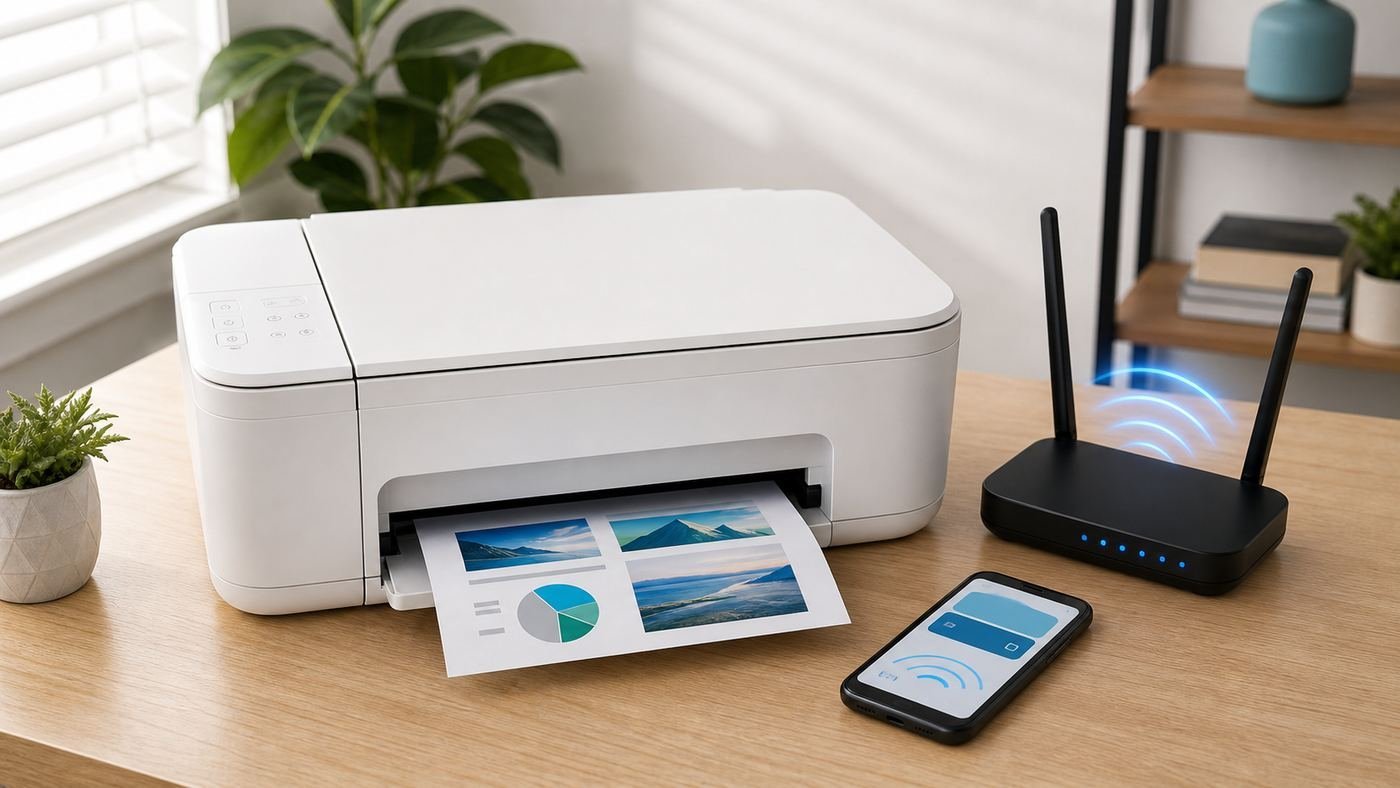
Printers are the only technology that seems to have got less reliable over time. You’d think that in 2026, connecting a printer to WiFi on Windows would be a one-click affair — and sometimes it is. But when it isn’t, you’re stuck in a maze of blinking lights, “printer offline” messages and setup wizards from 2009. Here’s how to connect a printer to WiFi on Windows, covering the methods that actually work, in the order you should try them.
I’ve set up more printers than I care to admit, and the golden rule is this: get the printer on the WiFi network first, using the printer’s own screen or buttons, and then add it in Windows. Doing it the other way round is where most people go wrong.
How to Connect a Printer to WiFi on Windows
- Know your WiFi network name and password. Sounds obvious, but “which network is it and what’s the password” derails more setups than anything else. If your router has separate 2.4GHz and 5GHz networks, note that most printers only support 2.4GHz — you’ll need the 2.4GHz password specifically.
- Put the printer near the router for setup. You can move it afterwards; a strong signal during setup avoids half the problems.
- Plug it in and turn it on. Again, obvious — but check it’s not in some deep sleep or error state first. Clear any paper jams or “low ink” warnings that might block setup.
- Update Windows (Settings → Windows Update). Windows 11 in particular has much better printer support than older versions, but only if it’s current.
Method 1: WPS Button (Easiest, If Available)
If both your printer and router have a WPS button (look for the circular arrows symbol), this takes about two minutes:
- Put the printer into WPS mode — usually by holding the WiFi button until it flashes (check your printer’s manual for the exact button).
- Within two minutes, press the WPS button on your router and hold for a few seconds.
- Wait. The printer should connect automatically and print a confirmation page.
That’s it — no passwords, no typing. If your router is supplied by your ISP and hidden in a cupboard somewhere (see our guide on router placement and WiFi dropouts), you might need to dig it out for this. Note: some security-conscious folks disable WPS on their routers, in which case use Method 2.
Method 2: Printer Touchscreen Setup (Most Common)
Most modern printers (HP, Canon, Epson, Brother) have a touchscreen or small display with a wireless setup wizard:
- On the printer, go to Settings → Network / Wireless → Wireless Setup Wizard (wording varies by brand).
- The printer scans for nearby networks — select your 2.4GHz network from the list.
- Enter the WiFi password carefully using the on-screen keyboard. Watch out for similar-looking characters (0 vs O, 1 vs l).
- Confirm, and wait for the “connected” message. Most printers print a network configuration page — keep it; it shows the printer’s IP address, which is useful for troubleshooting.
The 2.4GHz trap: this is the number one cause of “it won’t connect”. If your router broadcasts a single combined network name for both bands, most printers handle it fine. But if you see two networks (e.g. “HomeWiFi” and “HomeWiFi_5G”), the printer almost certainly needs the non-5G one. If the printer can’t see your network at all, check you’re not trying to join a 5GHz-only network.
Method 3: Manufacturer’s App or Software
HP Smart, Canon PRINT, Epson iPrint, Brother iPrint&Scan — every major brand has an app that walks you through setup, often more smoothly than the printer’s own screen. Download the app on your phone, follow the prompts, and it handles the WiFi configuration. This is often the path of least resistance for printers with tiny non-touch screens.
Now Add the Printer in Windows
Once the printer is on your WiFi network, adding it to Windows is usually automatic — but if it doesn’t appear:
- Go to Settings → Bluetooth & devices → Printers & scanners.
- Click Add device and wait for Windows to find the printer (give it up to a minute).
- Select your printer and click Add device.
- If it doesn’t appear, click “Manually add” → “Add a printer using an IP address” and enter the IP address from the printer’s network configuration page.
Windows 11 will usually fetch the right driver automatically. If it doesn’t, download the full driver package from the manufacturer’s website (not a random driver site) and install it manually.
Fixing “Printer Offline” and Other Common Problems
Printer shows as offline
The classic. Usually the printer’s IP address changed (routers reassign them periodically) and Windows is still looking at the old one. Fixes, in order:
- Turn the printer off and on again (genuinely fixes it half the time).
- In Windows: Printers & scanners → your printer → uncheck “Use printer offline” if it’s ticked.
- Remove the printer and re-add it (Settings → Printers & scanners → Remove, then Add device).
- Give the printer a static IP address via your router’s admin page — this permanently stops the IP-changing problem. Assign it something like 192.168.1.50, outside your router’s DHCP range.
Printer connects to WiFi but won’t print
Check the printer isn’t paused (Printers & scanners → Open print queue → Printer menu → uncheck “Pause Printing”). Clear any stuck jobs in the queue. And make sure you’re sending to the right printer — Windows sometimes creates duplicate entries (“HP LaserJet” and “HP LaserJet (Copy 1)”), and jobs sent to the ghost copy go nowhere.
Only some devices can print
If the laptop prints but the phone doesn’t (or vice versa), it’s usually a network segmentation issue — one device is on the 5GHz band or a guest network that can’t see the printer. Put everything on the same main network. Most modern printers support AirPrint (iPhone/iPad) and Mopria (Android) with no extra setup once they’re on the same network.
WiFi keeps dropping on the printer
Printers have weak WiFi radios — weaker than your phone or laptop. If the printer is far from the router or behind thick walls, its connection will be flaky even when everything else works. Move it closer, or consider a mesh WiFi node nearby. As a last resort, most printers have a USB port — a wired connection never drops.
Should You Even Bother With WiFi? Alternatives
Honestly? For a printer that lives next to a computer, USB is more reliable — plug it in and forget about it. WiFi printing earns its keep when multiple people or devices share one printer, or when the printer lives in a different room. WiFi Direct (printing straight to the printer without a network) is a handy middle ground for occasional use — most printers support it, and it sidesteps network issues entirely.
Get the printer on the network first, add it in Windows second, give it a static IP if it’s flaky, and keep the manufacturer’s app installed for ink alerts and troubleshooting. Follow that order and you’ll spend far less of your life arguing with a small beige box.
Which?’s printer reviews score models on wireless reliability specifically — worth consulting if your current printer fights every connection.